Downsub retrieves subtitles from a YouTube, VIU, or Viki video using a simple URL. The resulting file, in SRT or TXT format, can then be integrated into a video player or editing software. The question today is less about how the tool works and more about its actual reliability and the conditions under which these subtitles remain usable once downloaded.
Downloadable Subtitle Formats with Downsub: SRT, VTT, and TXT Compared
Downsub offers several file formats for export. The choice of format directly affects compatibility with the playback or editing software used afterwards.
| Format | Timecodes Included | Main Compatibility | Typical Use |
|---|---|---|---|
| SRT | Yes | VLC, Premiere Pro, DaVinci Resolve, most players | Video editing, professional subtitling |
| VTT | Yes | Web browsers, HTML5 players | Web integration, e-learning |
| TXT | No | Any text editor | Raw transcription, note-taking, translation |
The SRT format remains the most versatile for anyone planning to import subtitles into editing software. It retains timecodes line by line, allowing for synchronized display without additional manipulation.
The VTT serves a similar role but targets web environments. For an online course hosted on an HTML5 platform, this is the expected native format.
The TXT, on the other hand, contains only plain text. It is suitable for quick proofreading or translation but requires manual recreation of all timing if you wish to reintegrate the subtitles into a video. You can delve into the complete procedure for downloading subtitles with Downsub on Strat and Geek before choosing your format.
Offset Synchronization After Download: Identifying and Correcting the Issue
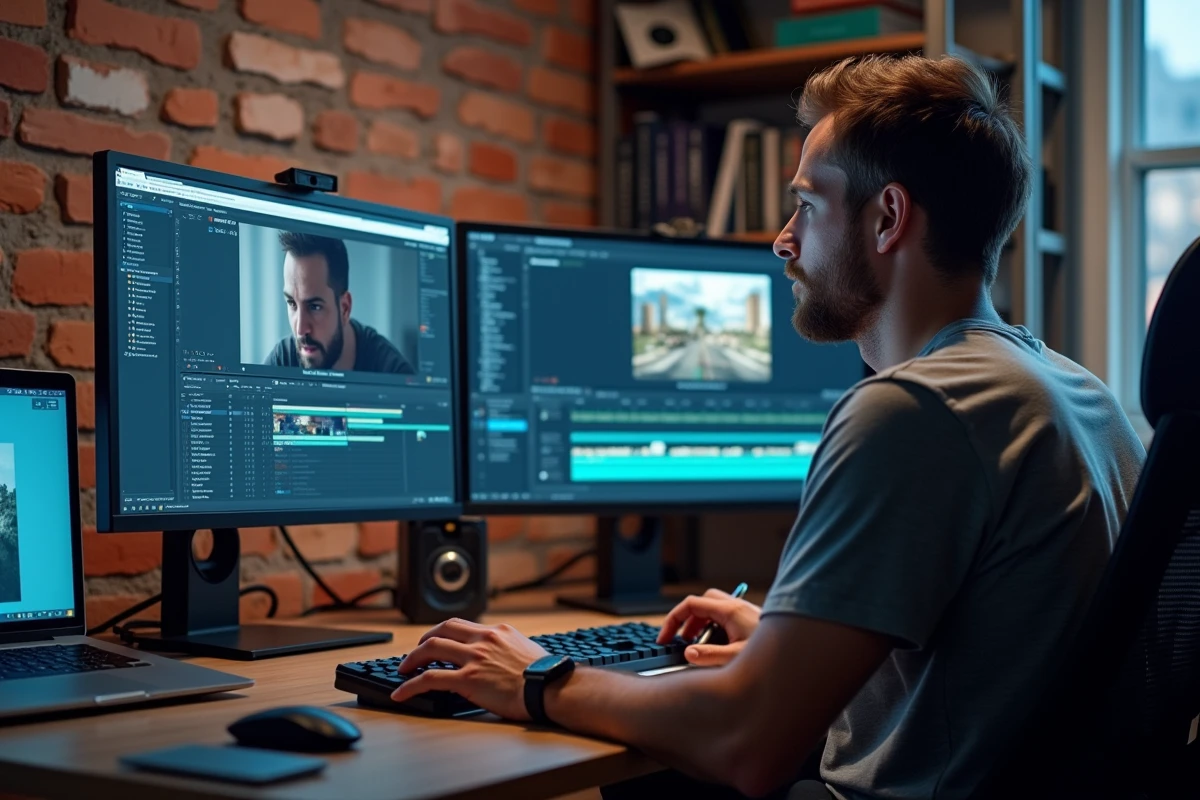
Retrieving an SRT file from Downsub does not guarantee perfect alignment once the file is imported into another context. Two situations often cause frequent offsets.
Fixed Offset Throughout
When all lines arrive one or two seconds too early (or too late), the problem stems from a global offset. Most video players like VLC allow you to adjust this offset in real-time with a keyboard shortcut.
In editing software, you simply need to shift the subtitle track on the timeline. The SRT file itself can also be corrected via a subtitle editor (Subtitle Edit, for example) by applying a uniform offset to all timecodes.
Progressive Offset Due to Re-editing
If you have shortened or rearranged the video after downloading the subtitles, the original timecodes no longer match the modified edit. Downsub does not handle this realignment. Specialized services like Happy Scribe realign subtitles to the audio through acoustic analysis, which simple SRT file downloading does not allow.
Before seeking a third-party tool, check that the offset is not simply due to a different framerate between the YouTube source and your editing project.
Reliability of Downsub and Current Technical Limitations
Tutorials published over the years often present Downsub as a completely smooth service. The reality has evolved.
- Downsub displays more restrictions and advertisements than in its early days, complicating navigation, especially on mobile.
- YouTube regularly modifies its access conditions for APIs and automatic scraping. Downsub may function intermittently depending on these updates, with periods where extraction fails without explanation.
- Some videos whose subtitles are automatically generated by YouTube are not always detected by Downsub, which then only retrieves manual subtitles (when they exist).
This intermittent functionality explains why several competing tools (SaveSubs, EasySub) coexist without any dominating the market for long. When one goes down, users temporarily migrate to another.
Copyright and Terms of Use: What Downsub Does Not Specify
The ease of extracting subtitles masks a legal question that most online guides ignore. The subtitles of a YouTube video remain subject to copyright of their creator, whether they are entered manually or generated automatically and then corrected.
YouTube’s terms of use explicitly prohibit downloading content (including subtitles) outside the mechanisms provided by the platform. Strictly personal or educational use may fall under an exception, but reposting extracted subtitles on another site or video poses a compliance issue.
Compliant Alternatives for Educational Use
YouTube Studio allows creators to upload their own subtitle files directly from the admin interface. For others’ videos, some e-learning platforms document the possibility of retrieving subtitles internally, without resorting to a third-party service.
If you use subtitles for translation or transcription in an educational context, prioritize videos under Creative Commons licenses. YouTube allows filtering search results by license type.
Retrieving Downsub Subtitles: Concrete Steps and Checks
The download procedure remains simple when the service is operational.
- Copy the full URL of the YouTube video into the input field on downsub.com, then click the download button.
- Downsub displays the available languages. Select the desired language and format (SRT for video use, TXT for transcription).
- Open the downloaded file in a text editor to check that the timecodes are present and that the text corresponds well to the source video.
- Import the SRT file into your editing software or player, and adjust the offset if necessary.
Checking the file after download is a step often overlooked. A corrupted or incomplete SRT file does not generate a visible error message in some players: the subtitles simply do not display.
Downloading subtitles via Downsub remains functional for occasional use, provided you accept its stability limits and respect the rights attached to the source content. For a regular workflow, combining Downsub with a dedicated subtitle editor allows you to correct offsets and adapt the file for the final edit.